

Penfast
Sign in seconds

Sign a PDF on iPhone without printing it

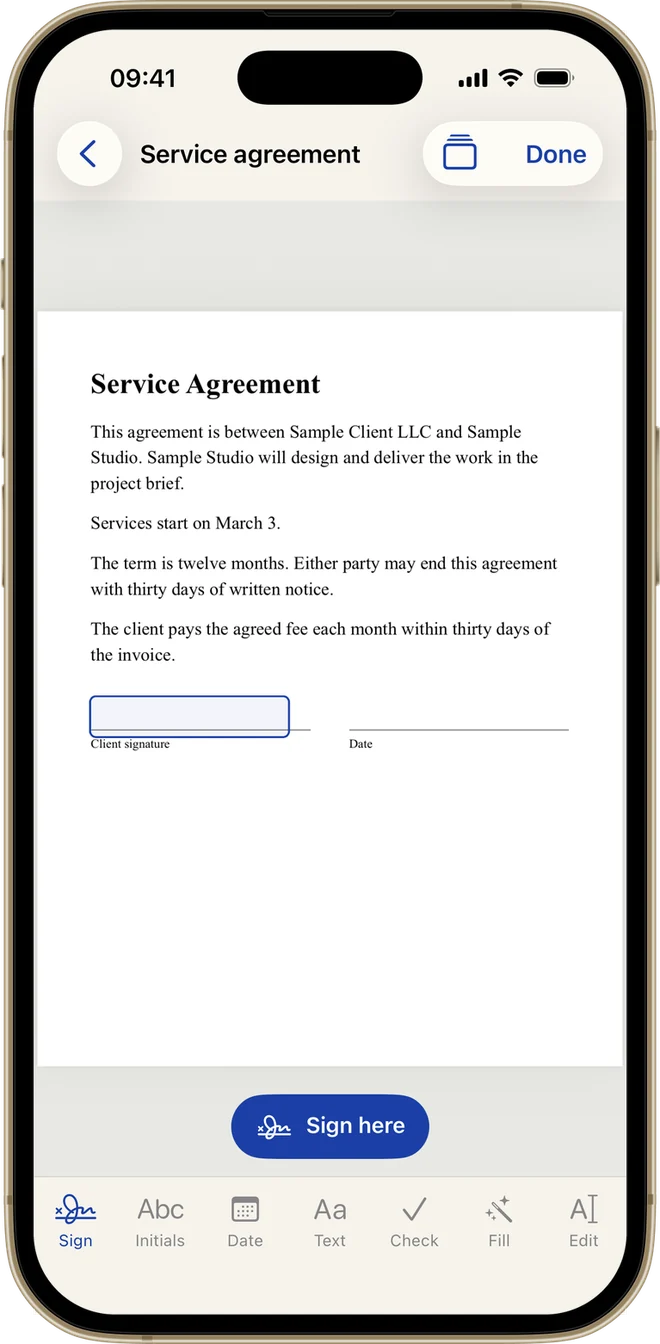
Penfast signs PDFs on your iPhone or iPad. It finds the signature line for you, so you tap Sign here and send the document back.

Download on the App Store

Still printing a document to sign it?

Someone is waiting on your signature and the paperwork is the only thing left. You already have your phone. That should be enough.

The way it goes nowFind a printer › Print › Sign › Scan › Email
With PenfastOpen it › Sign › Send
Signed papers on a table with a blue pen and a cup of coffee
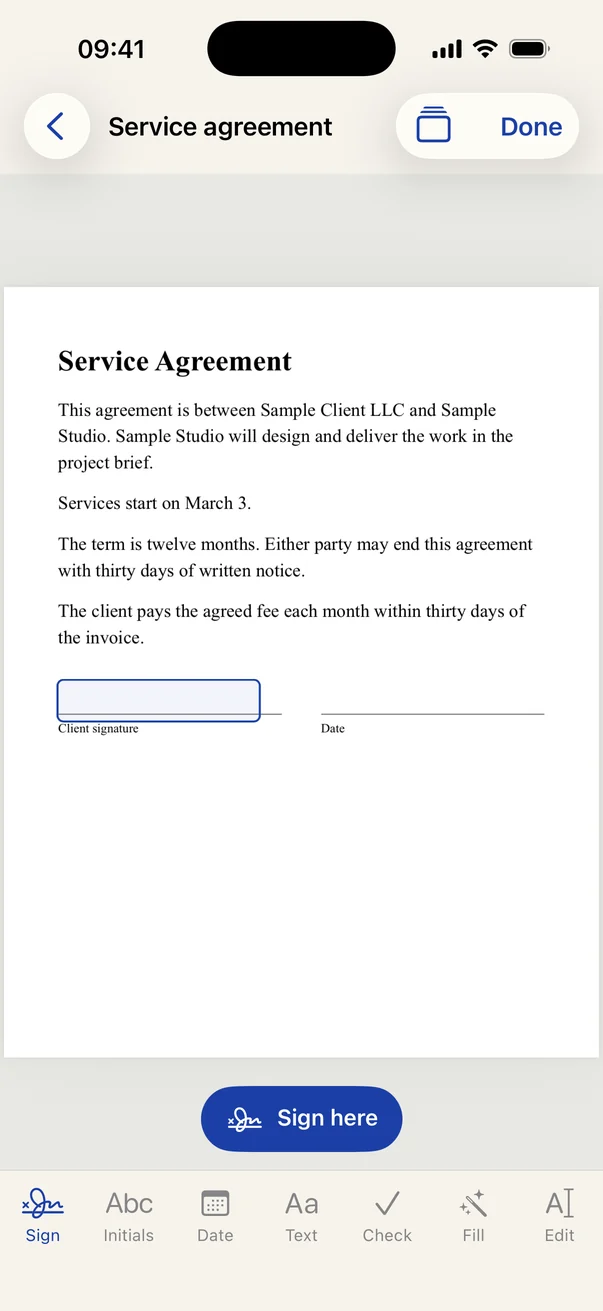
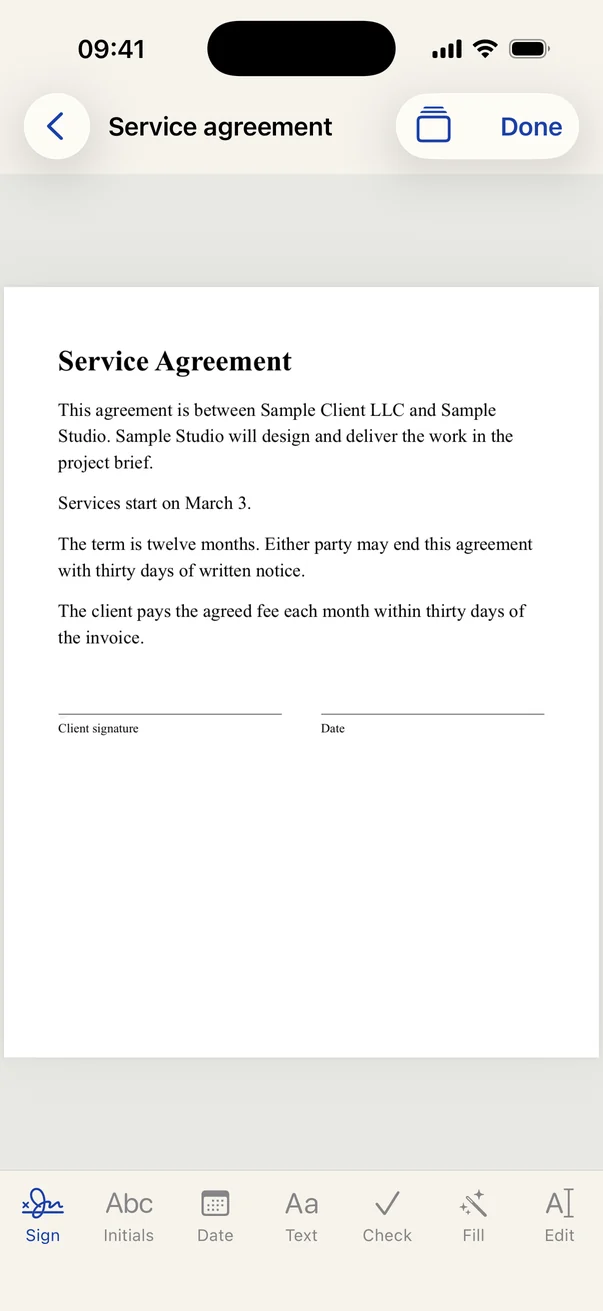
iPhone showing a PDF with the signature line found and a Sign here button
Signature line found

Sign PDFs and find the line automatically

Open a contract, a lease or a form and Penfast reads the page on your device to find the signature line. Tap Sign here and your saved signature lands on it, sized to fit.

If a document has no clear label, tap Sign and drag your signature where it belongs.

How to sign a PDF on iPhone
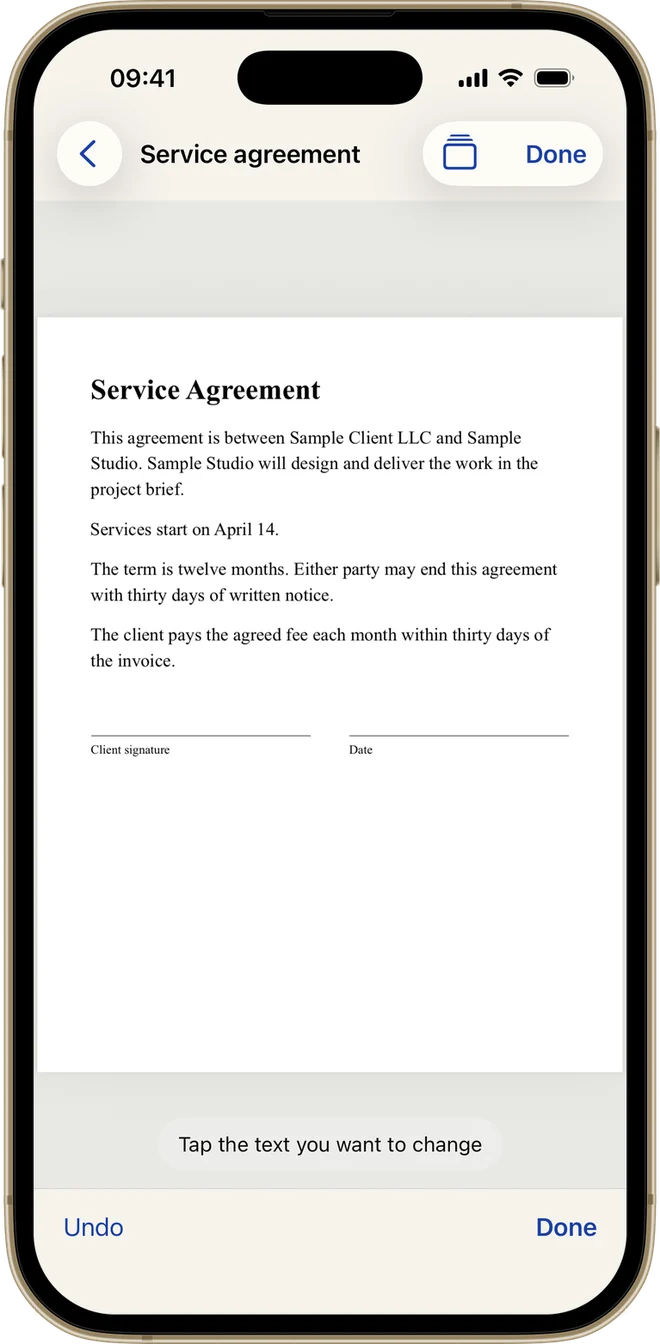

iPhone showing a PDF after its start date was changed by tapping the text
March 3 → April 14Line of a PDF before the edit, reading Services start on March 3The same line after the edit, reading Services start on April 14

Edit PDF text by tapping it

Fix a name, a date or a typo right on the page. Tap Edit, tap the words you want to change, type the new ones and tap Replace.

The old words leave the file. They are not hidden under a box.

How to edit a PDF on iPhone
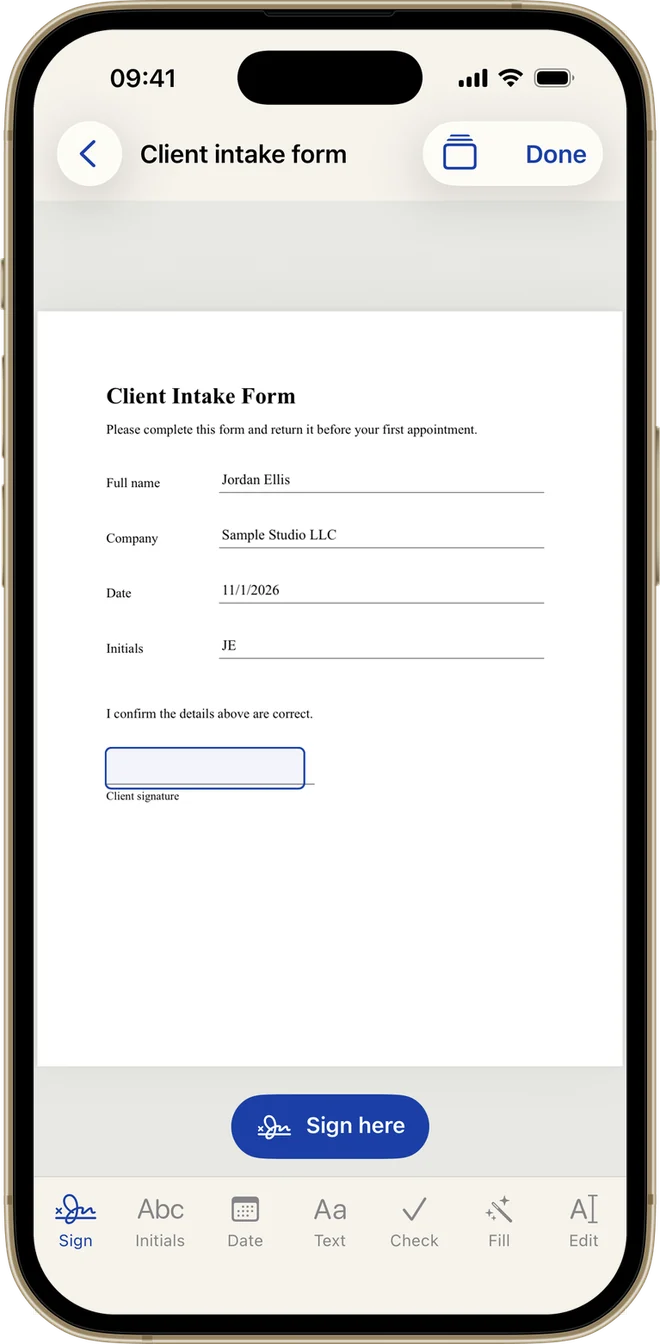
PDF form on iPhone with name, company, date and initials filled in
Details filled in

Fill PDF forms with saved details

Save your name, company and initials once. On a PDF form, tap Fill and the matching empty fields are done, with today's date too.

On a flat PDF, the Text, Date, Check and Initials tools put each one where you drag it.

How to fill out a PDF on iPhone
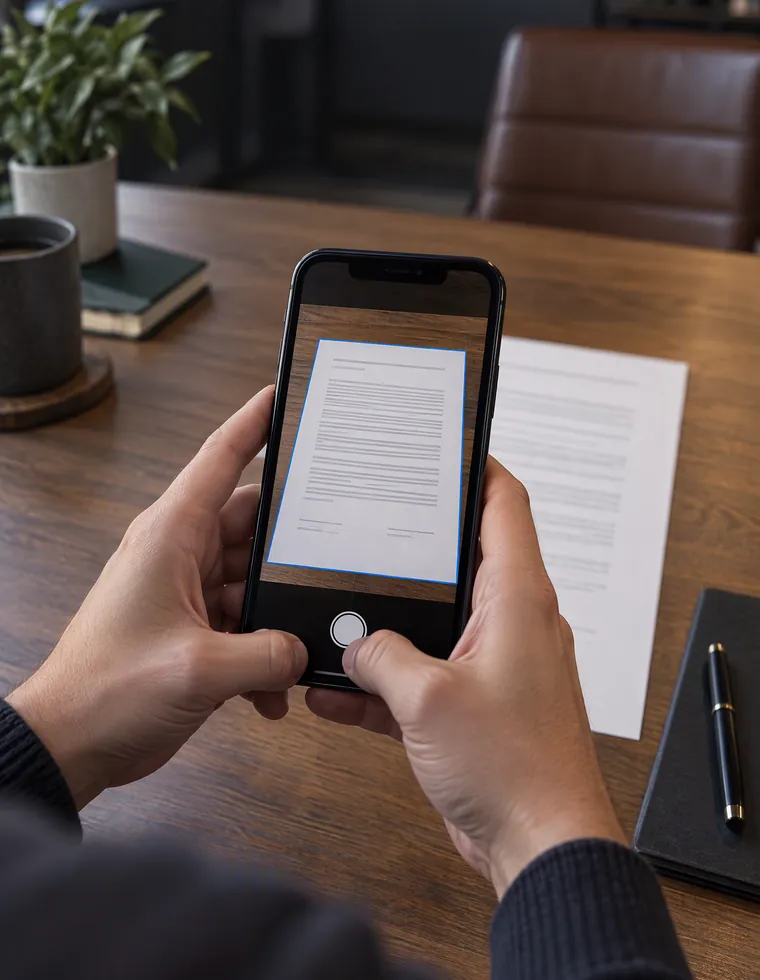
Hands holding an iPhone over a paper document to scan it to PDF
Clean PDF

Scan paper into a clean PDF

Point your camera at the page and Penfast turns it into a straight, shareable PDF. Scan several pages into one document, then sign it right there.

How to scan to PDF on iPhone
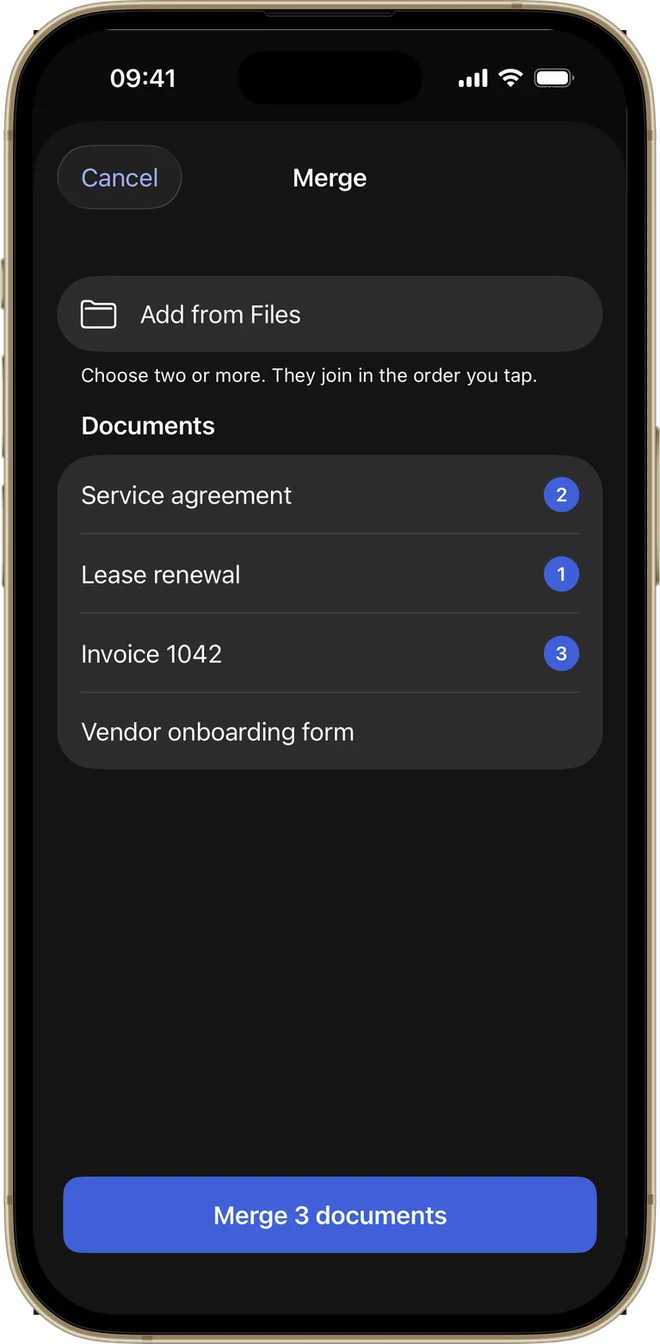
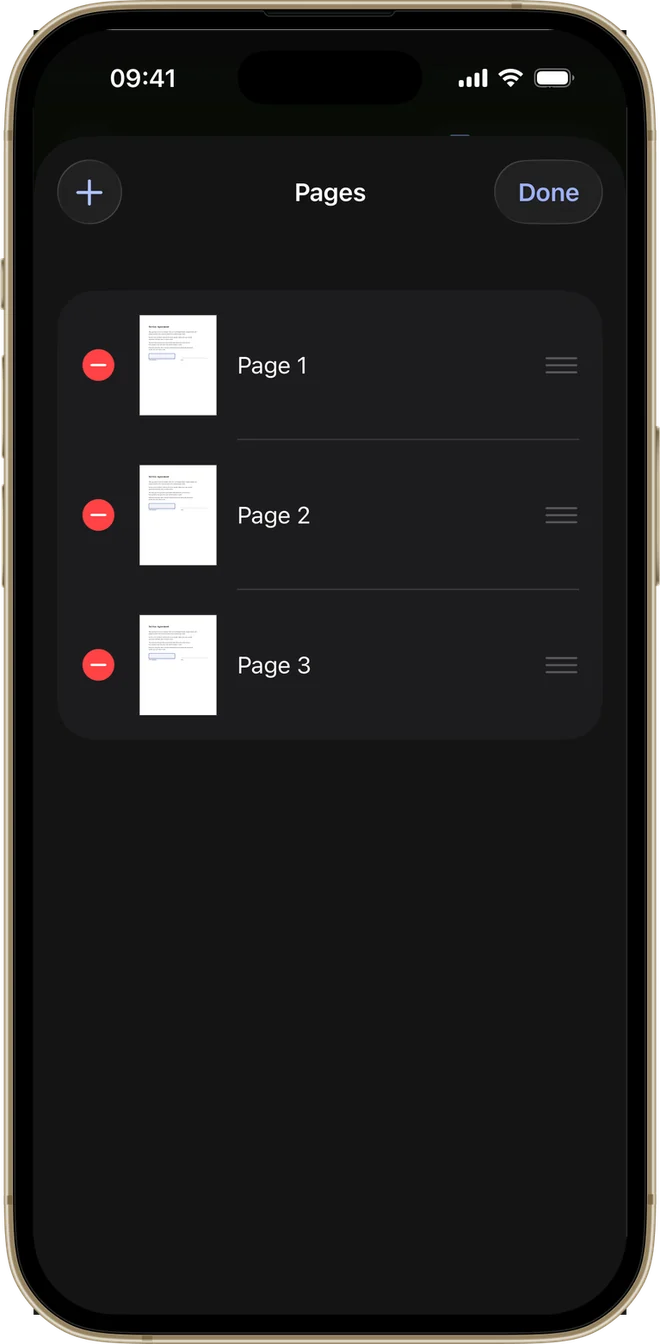
Penfast merge screen with three documents picked in order Penfast pages screen for reordering and deleting PDF pages

Merge PDFs, reorder and delete pages

Tap Merge, pick two or more documents and they join in the order you tap. Inside a document, drag pages into a new order, delete the ones you don't need and add pages from the camera, Files or Photos.

How to merge PDFs on iPhone

Sign from any app

Share a PDF from Mail, Files or Safari to Penfast and it opens ready to sign.

Lock with Face ID

Turn on the lock in Settings and your documents stay locked until you open them with Face ID.

Dark mode and 16 languages

Choose light, dark or match your device. Penfast comes in 16 languages.

How to sign a PDF on iPhone with Penfast

  1. 1

    Open it

    Pick a PDF from Files, scan paper with the camera, use a photo, or share a document in from another app.

  2. 2

    Sign

    Tap Sign here. Add initials, the date or text where you need them, then move or resize anything on the page.

  3. 3

    Send

    Tap Done. Your page goes out as a clean PDF, not a photo of paper. Send it or save it to Files.

We never see your documents

Penfast processes your documents on the device. The app never uploads them. A document leaves when you send it or save it somewhere yourself.

Nothing uploaded to signFinding the signature line happens on your device, not on a server.
No accountNo sign-up, no password, nothing to remember.
Your own backupsDocuments go in your iCloud or device backup if you use one.
Works offlineSign and save with no connection.
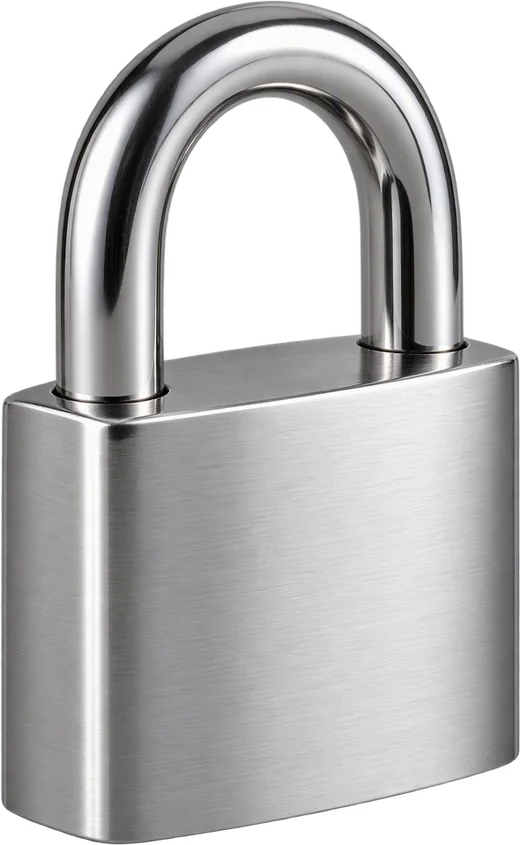
Steel padlock for private documents

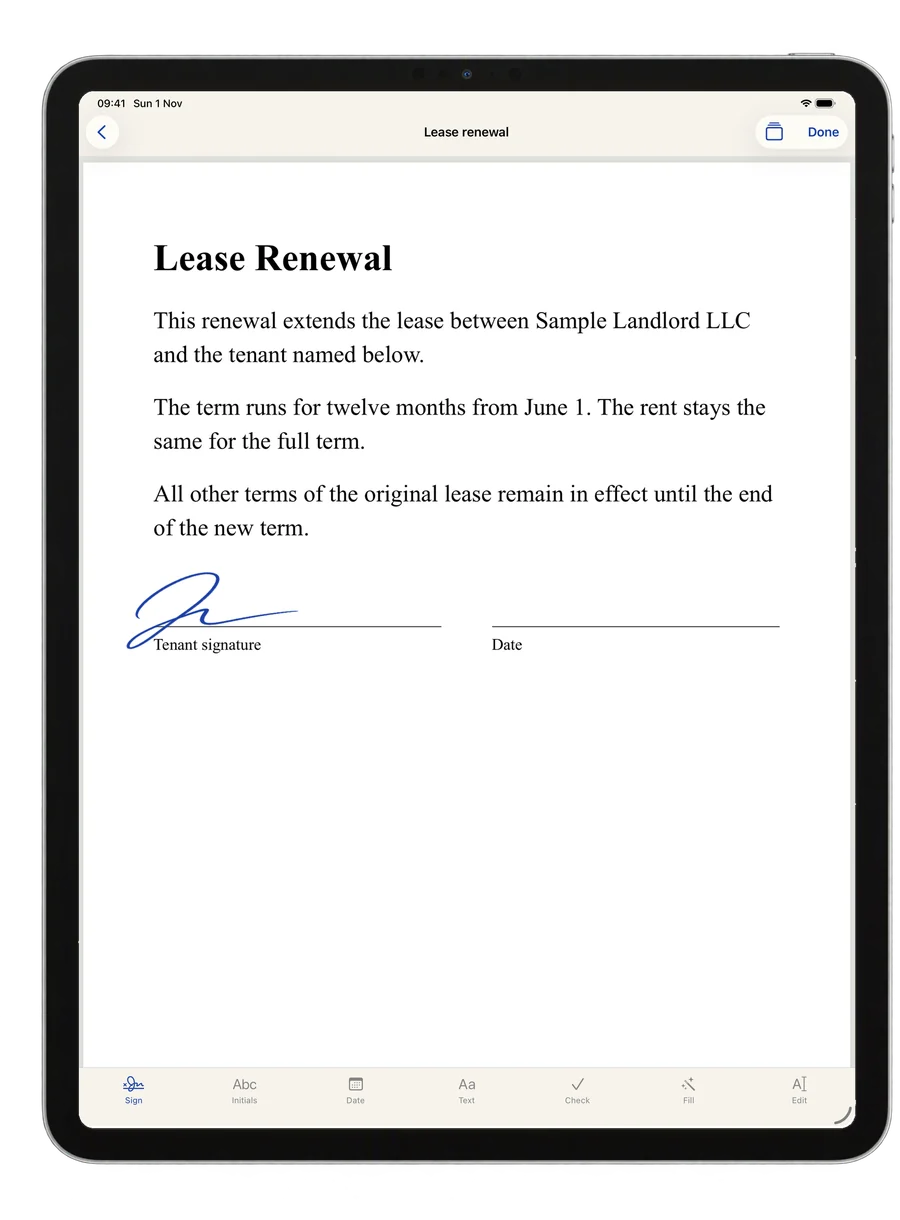
Sign PDFs on iPad too

Penfast runs on iPhone and iPad with the same tools. On iPad the whole page is in view, so you read the agreement and sign it on one screen.

iPad showing a signed lease renewal PDF in Penfast

Questions about Penfast

Can I sign a PDF on iPhone with Penfast?
Yes. Open the PDF, tap Sign here on the line Penfast found, then tap Done and send it. Your signature is saved after you draw it once, so every document after that takes a tap. The sign guide has every step.
Do I need an account?
No. There is no sign-up and no password. Your subscription runs through your Apple Account.
Are my documents uploaded?
No. Penfast processes documents on your device and never uploads them. We never see your documents. They are stored on your device and included in your own iCloud or device backup if you use one.
Is there a free trial?
No. Penfast needs a subscription from the start, and you can pick weekly, monthly or yearly.
How do I cancel?
Open Settings on your iPhone, tap your name, then Subscriptions. You can cancel any time. Apple handles billing and refunds.
Does it work offline?
Yes. You can sign, fill, scan and edit with no connection. You need one to subscribe, and to send a document.
Does Penfast work on iPad?
Yes. It is one app for iPhone and iPad and needs iOS or iPadOS 17 or later.
Can it open a password-protected PDF?
No. Remove the password first, then open the PDF in Penfast.
What if Penfast misses the signature line?
Tap Sign to add your signature, then drag it into place. You can resize it with the buttons that appear.