 Penfast
How to fill out a PDF on iPhone
To fill out a PDF on iPhone, open it in Files or Preview, tap the form filling button and type in each field. With Penfast, save your details once and tap Fill on any PDF form.

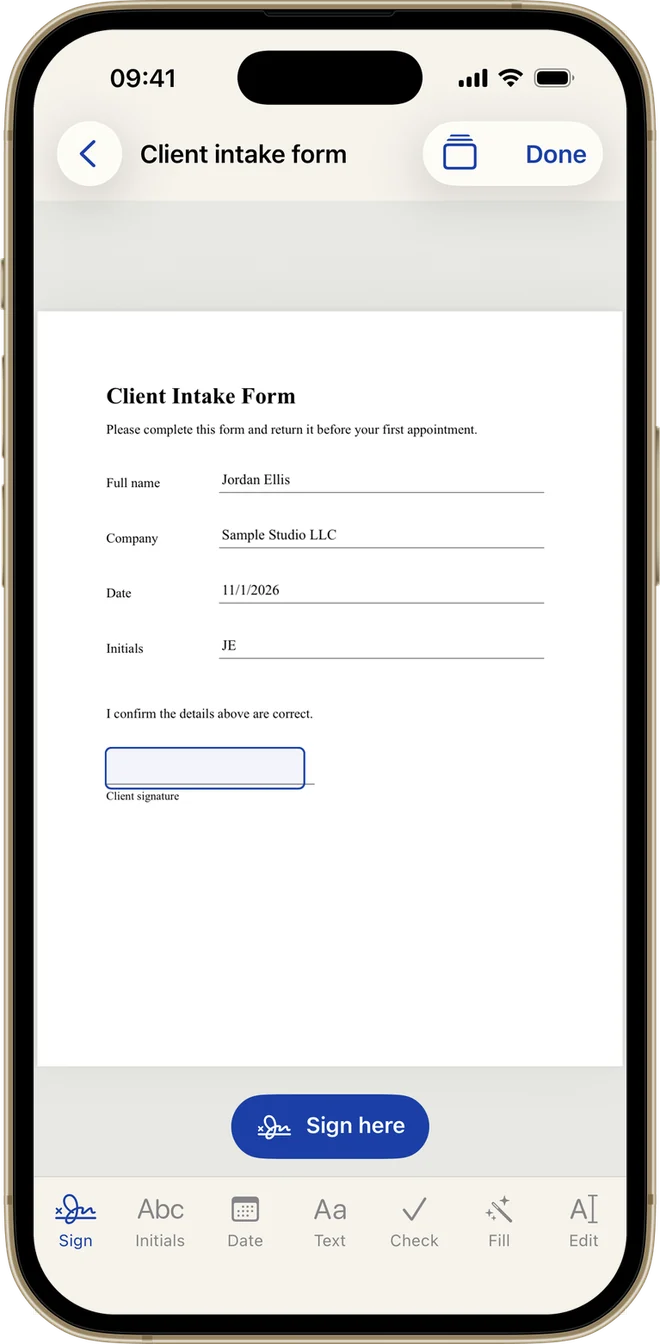
How you fill a PDF depends on the PDF. A real form has fields you can tap. A flat PDF is only a picture of a form, so you place text on it yourself. Both are covered here.
How to fill out a PDF form on iPhone with Files
This is the built-in way. Apple's button names can differ a little between iOS versions.
- Open the form on your iPhone. If you are prompted, open it in the Files app and tap Save.
- Tap the AutoFill button, tap a blank field and type. Keep going through the blank fields.
- If a prompt offers to fill several related fields at once, review the suggested info and tap Fill.
- To add something where there is no field, tap the Add button, then Add Signature or Add Text Form Box.
- Tap the Menu button, then Export, Print or Share.
AutoFill uses your My Card in the Contacts app, so complete that first. You can tap "Choose other" to use another contact's details.
How to fill out a PDF on iPhone with Preview
On iOS 26 and later, you can use the Preview app.
- Open the Preview app and open the PDF form.
- Tap the form filling button.
- Tap a field and type, or tap the AutoFill suggestion above the keyboard.
- To add a signature or a text form box, tap the Add button.
If someone emails you a form, tap the attachment in Mail to open and complete it in Preview, then reply and attach the finished PDF.
Both of these mean going field by field. That is fine once. If you type the same name and company into form after form, Penfast does it with one tap.
How to fill a PDF form on iPhone with Penfast
Penfast keeps your details on your device and fills what it recognizes in one tap.
- Open Settings in Penfast, tap Your details and enter your full name, company and initials. You only do this once.
- Open the PDF form in Penfast.
- Tap Fill in the bottom bar.
- Penfast fills the empty fields it can match: name, company, initials and today's date. You'll see "Details filled in."
- Add anything else with the tools in the bottom bar, then tap Sign here if the form needs a signature.
- Tap Done, then Send or Save to Files.
Penfast matches fields by the name the form gives them, in every app language. Check the result before you send it. A field with an unusual name can stay empty, and fields that already have something in them are left alone.
How to fill out a PDF that has no form fields
If you tap Fill and see "No matching fields found," the PDF is flat or its field names don't match. Scanned forms are always flat. You can still complete it in Penfast with these tools, and each item can be dragged into place and resized.
- Text: type a word or line, tap Add, then drag it onto the blank.
- Date: adds today's date.
- Check: adds a check mark for a box.
- Initials: adds your initials from your details.
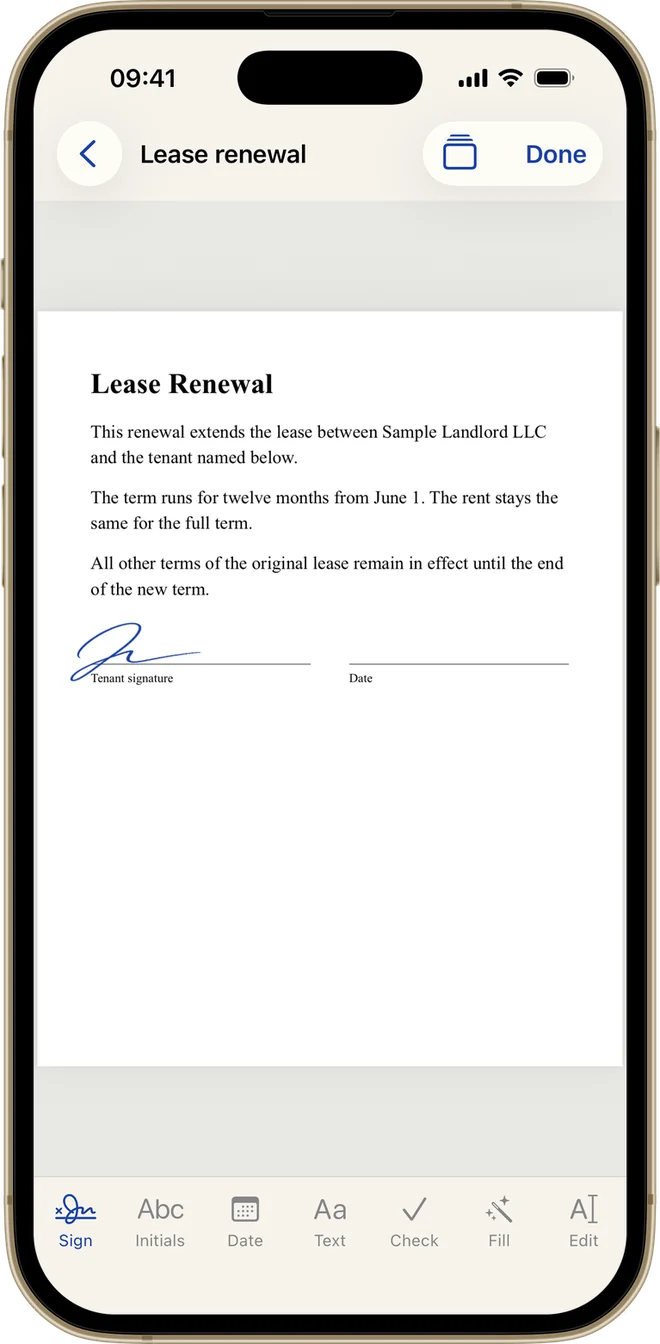
The bottom bar: Sign, Initials, Date, Text, Check, Fill and Edit
Fill out and sign a paper form on iPhone
If the form is on paper, tap Scan in Penfast and capture it, then use the tools above. The guide to scanning to PDF on iPhone has tips for a clean scan.
A form that has already been filled in with a mistake can be fixed too. See how to edit a PDF on iPhone. To finish with a signature, see how to sign a PDF on iPhone.
Which way should you use?
For a one-off form, Files and Preview are free and AutoFill handles a lot. Penfast is quicker when forms keep coming. Save your details once, tap Fill, and the matching empty fields are done in one tap, with today's date. Flat PDFs with no fields work too: the Text, Date, Check and Initials tools put each one where you need it, and you can sign on the same screen. It needs a subscription.