 Penfast
How to edit a PDF on iPhone
To edit a PDF on iPhone, use Markup or Preview to add text and manage pages. To change words already on the page, open the PDF in Penfast, tap Edit, tap the text and type the new words.

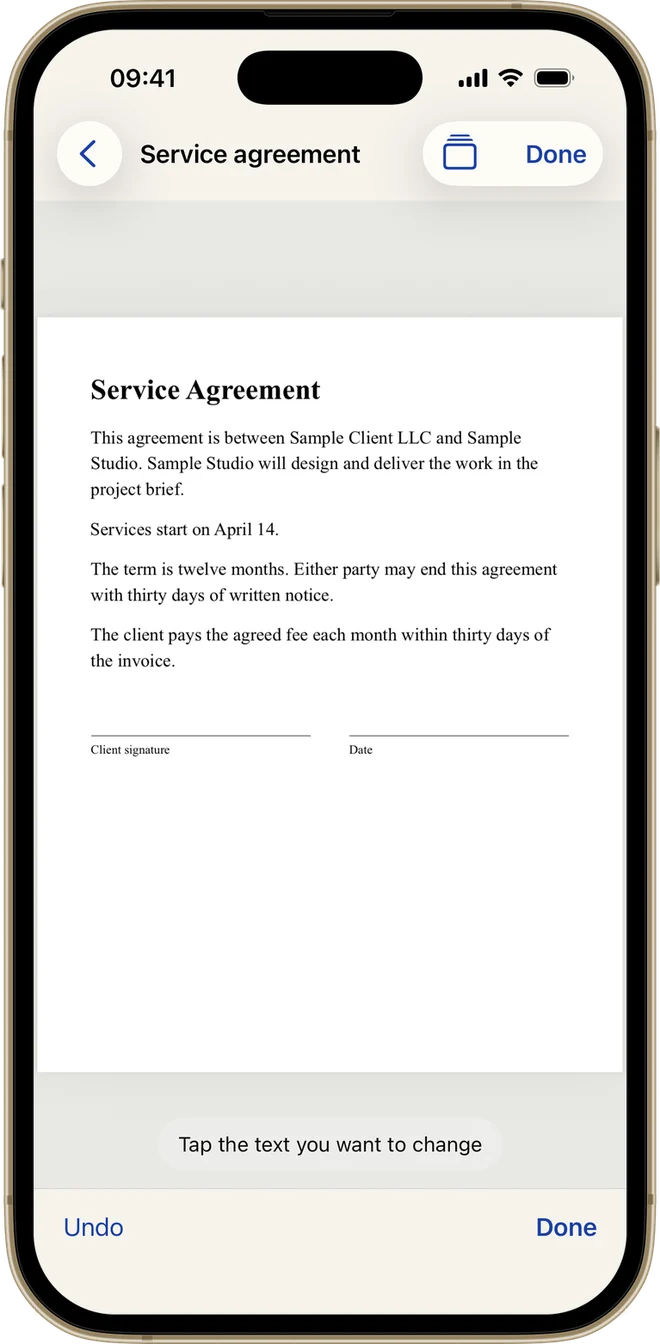
Editing a PDF can mean two things. Adding something on top of the page is built into iPhone. Changing the words that are already there is what most people are looking for, and it takes an app.
What you can edit in a PDF on iPhone without an app
Apple's Markup tools work in apps such as Notes and Photos, and on iOS 26 and later the Preview app adds more for PDFs. Button names can differ a little between iOS versions.
Add text to a PDF with Markup
- Open the PDF in a supported app and tap the Markup button.
- Tap the Add button in the Markup toolbar, then Add Text.
- Tap the text box and type. Use the tools to change the font, size or color.
- Tap outside the box, then tap Done.
Highlight or strike through text in Preview
- Open the PDF in the Preview app.
- Touch and hold the first word, then move the grab points to select the text.
- Tap Highlight and choose a color, or tap the underline or strike through button.
These tools sit on top of the page. Apple's guides don't describe a way to change the words a PDF already contains. A text box placed over old words covers them on screen, and the old words can stay in the file.
That covers notes and pages. A wrong date or a misspelled name is different: the built-in tools add things on top of the page, so the original words stay where they are. That is the job Penfast is for.
How to edit PDF text on iPhone with Penfast
Penfast lets you tap a line and retype it. This is the way to fix a name, a date, a price or a typo.
- Open the PDF in Penfast.
- Tap Edit in the bottom bar. You'll see "Tap the text you want to change."
- Tap the line. It opens in a box with the words ready to change.
- Type the new words and tap Replace.
- Tap Done in the bottom bar, or Undo to go back a step.


A real edit in Penfast: the date on the page, before and after
How the new text looks
Penfast uses the same font when your device has it and the closest match when it doesn't, at the same size and color. If the new words are longer than the old ones, Penfast makes them a little smaller so they stay on the line.
What happens to the old words
When you finish, the edited page is saved as an image of the page, so the old words are gone from the file. They aren't hidden under a box. The trade-off is that text on that page can no longer be selected or searched. Other pages keep their text.
Where text editing won't work
Text has to sit on a plain background. On a photo or a busy pattern, Penfast tells you it can't replace it. Scanned pages do work: Penfast reads the line on your device first, and the new text uses a standard font. PDFs protected with a password can't be opened.
How to change a date or name in a PDF
Dates and names are the most common fix. Tap Edit, tap the line with the date or name, change only those characters and tap Replace. Check the rest of the document before you sign it, because the same name or date may appear in more than one place, and each line is its own edit.
If you also need to sign the document, do it after the edits. The guide to signing a PDF on iPhone covers that step.
How to add text to a PDF in Penfast
For a word that isn't on the page yet, tap Text in the bottom bar, type it and tap Add. Drag it where it goes. To complete a whole form, see how to fill out a PDF on iPhone.
Reorder or delete PDF pages on iPhone
The built-in way is in Preview, on iOS 26 and later. Open the PDF, tap the button that shows thumbnails, then touch and hold a thumbnail. You can drag it above or below another page, or choose Delete Page, Insert Blank Page or Insert from File.
In Penfast:
- Open the document and tap the Pages button at the top.
- Drag a page by its handle to move it. Tap the red minus to delete it.
- Tap the + button to add pages from the camera, Files or Photos.
- Tap Done.
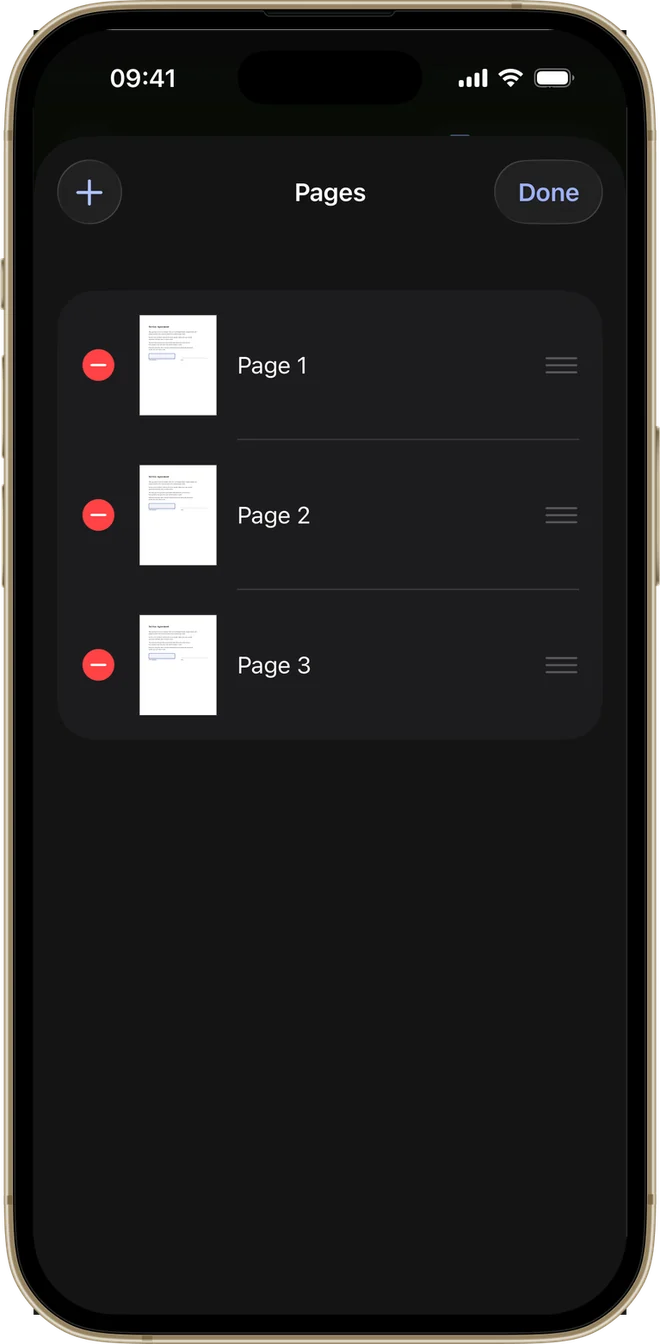
The Pages screen, here in dark mode
How to merge PDFs on iPhone
In Preview, touch and hold a page thumbnail and choose Insert from File to add another PDF to the one you have open.
Penfast has a Merge button for this.
- On the Documents screen, tap Merge.
- Tap two or more documents. They join in the order you tap. Use Add from Files to bring in one that isn't in Penfast yet.
- Tap the Merge button at the bottom. The new document opens, ready to sign or send.
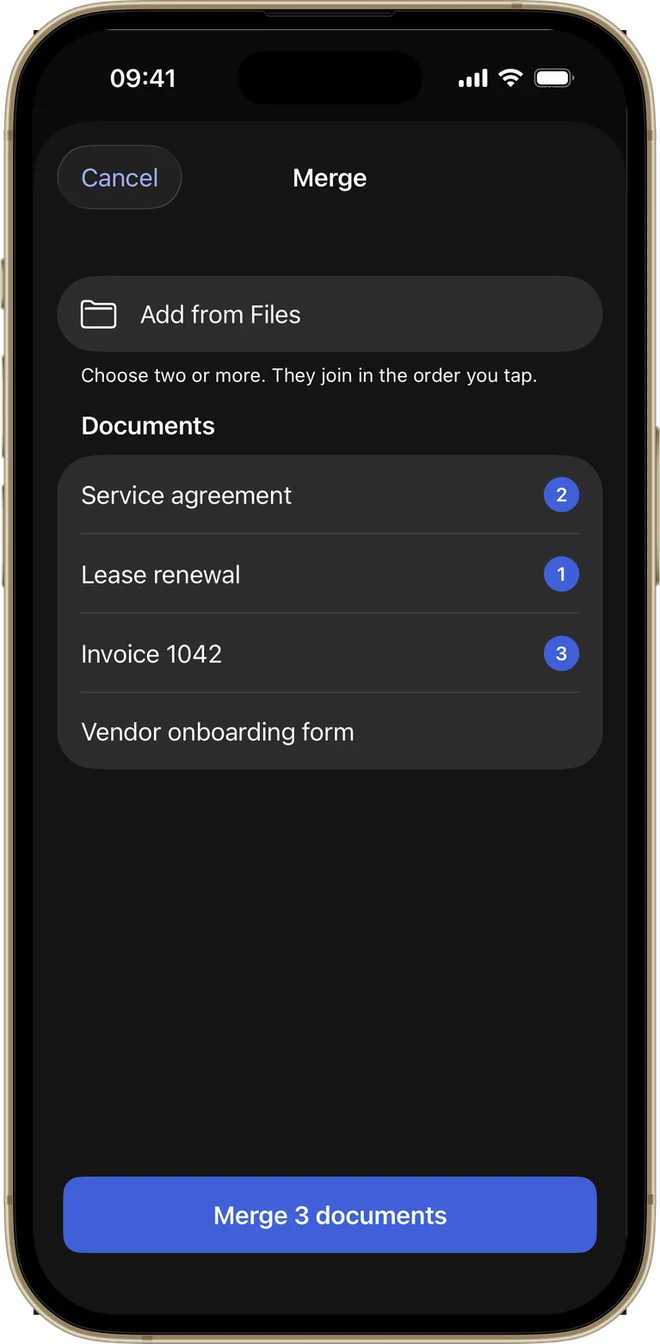
Numbers show the order the documents will join
Which way should you use?
To add a note, highlight a line or remove a page, the built-in tools are enough and cost nothing. To change words already in the PDF, they won't get you there: Apple's guides don't describe a way to do it. Penfast does. Tap the line, type the new words and tap Replace, and the old words leave the file instead of hiding under a box. It all happens on your device with nothing uploaded. It needs a subscription.