 Penfast
How to scan to PDF on iPhone
To scan to PDF on iPhone, open Notes or Files, tap Scan Documents and point the camera at the page. With Penfast, tap Scan and the PDF opens ready to sign, fill or send.

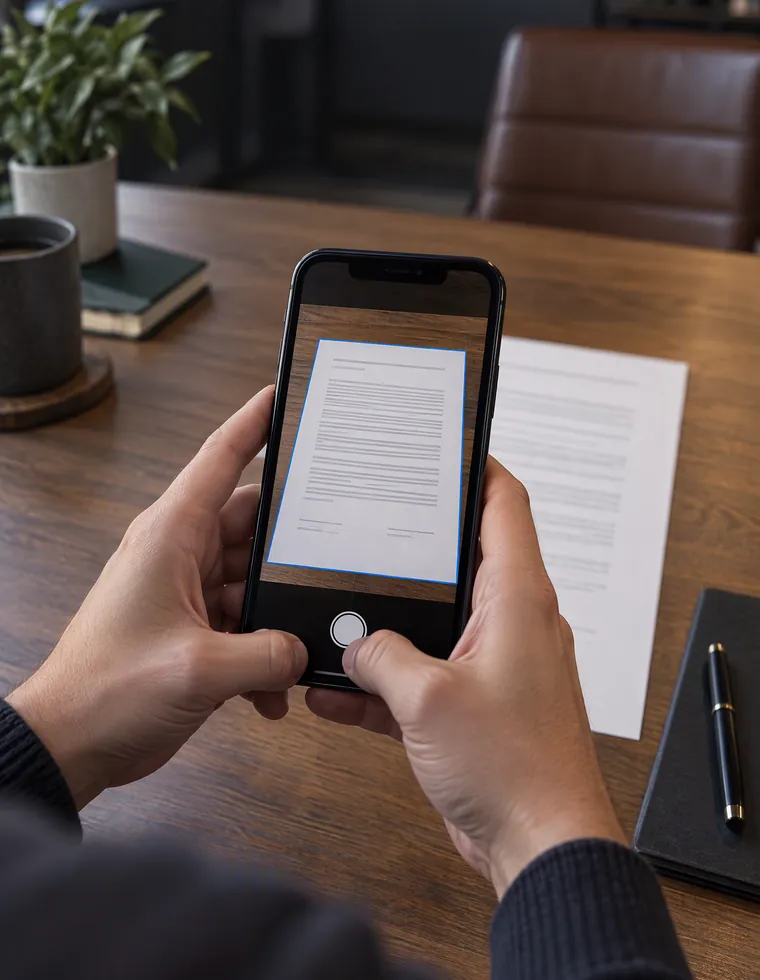
iPhone can scan documents without any extra app, and the result is a clean page with straight edges. Here is every way to do it, then what to do next if the paper needs a signature.
How to scan to PDF on iPhone with Notes
- Open the Notes app and open a note, or start a new one.
- Tap the Attachment button, then Scan Documents.
- Hold your iPhone over the page. It captures the page on its own when it finds the edges. To do it yourself, tap the shutter, drag the corners and tap Keep Scan.
- Scan more pages if you have them, then tap Done.
The document is saved as a PDF inside the note. To send it, open the PDF's menu in the note and choose share.
iPhone scan to PDF with the Files app
Use Files when you want to keep the scan in a folder.
- Open the Files app and tap the More button.
- Tap Scan Documents.
- Capture each page the same way as in Notes, then tap Done.
- Choose a location and tap Save.
Scan to PDF on iPhone with Preview
On iOS 26 and later, the Preview app can scan too. Open Preview and tap Scan Documents. Tap the thumbnails to crop, rotate or adjust the color of a page, and tap the done button when you finish. Preview combines the pages into a single PDF.
These give you a PDF, and a lot of the time that is only the first step. If it has to come back signed, you still have to open it, add your signature, place it and send it. Penfast keeps all of that in one place.
How to scan and sign a document with Penfast
Most paper that needs scanning also needs signing. Penfast keeps both in one place, so you don't move the file between apps.
- On the Documents screen, tap Scan.
- Hold your iPhone over the page. Keep going for every page, then finish the scan.
- The scan opens as one PDF. Penfast looks for a signature line, the same way it does on any PDF.
- Tap Sign here, or use Fill, Text, Date or Check to complete it.
- Tap Done, then Send or Save to Files.
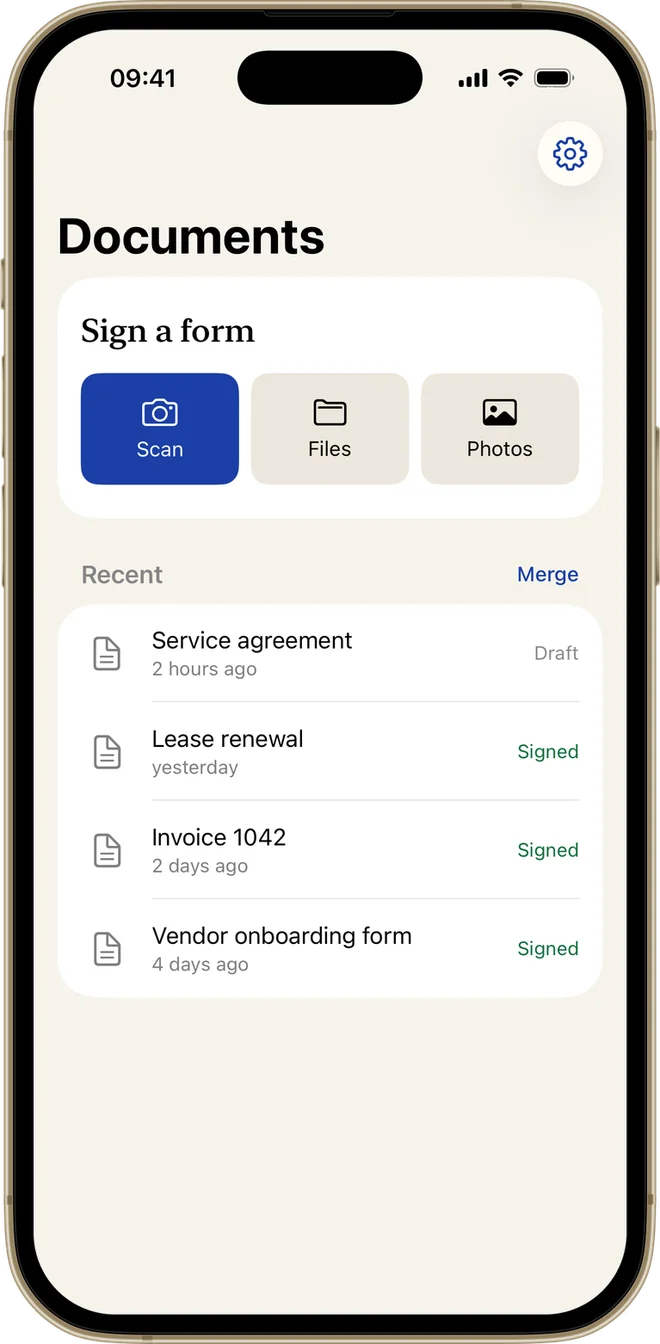
Scan is the first button on the Documents screen
Scan multiple pages into one PDF on iPhone
Every method above keeps going until you finish, so a multi-page document ends up as one file. Scan the pages in order.
If you forgot a page, open the document in Penfast, tap the Pages button, tap the + button and choose Camera. You can drag it into place from there. The guide to editing a PDF on iPhone covers pages and merging.
Turn a photo into a PDF on iPhone
Already took a picture of the document? In Penfast, tap Photos on the Documents screen and pick it. Penfast makes it a PDF you can sign or send. A scan will look cleaner than a photo, because the scanner straightens the page.
Tips for a clean scan
- Lay the page flat on a darker surface, so the edges stand out.
- Use even light and keep your own shadow off the page.
- Hold the phone straight above the page and keep it still.
- Check the corners before you keep the scan, and drag them in if they are off.
- Read the small print on screen before you send it, and scan again if any of it is blurred.
Which way should you use?
To file a receipt or keep a copy of something, Notes and Files are quick and free. If the page needs a signature or filled-in details before it goes back, Penfast keeps scan, sign and send in one app. The scan opens ready for signing, with nothing to save, find and open again first. It needs a subscription.