 Penfast
How to sign a document on iPhone
To sign a PDF on iPhone, open it in Files or Mail, tap Markup or the Add button, and add your signature. With Penfast, open the PDF, tap Sign here on the line it found, and send it.

Both ways below need nothing but your phone, and neither needs a printer. The built-in way comes with iPhone. The Penfast way takes fewer steps once your signature is saved.
How to sign a PDF in the Files app
This is the built-in way, using Apple's form tools. Apple's button names and icons change a little between iOS versions.
- Open the PDF on your iPhone. If you are prompted, open it in the Files app and tap Save.
- Tap the AutoFill button.
- Tap the Add button, then tap Add Signature.
- Sign your name with your finger and tap Done.
- Drag the signature to the line. Resize it with the blue dots around it.
- Tap the Menu button, then Export, Print or Share to send the signed PDF.
On iOS 26 and later, the Preview app has the same tools. Open the PDF in Preview, tap the form filling button, then the Add button for a signature.
How to sign a PDF from an email on iPhone
When a PDF arrives in Mail, you can sign the attachment and reply from the same screen.
- Open the message in Mail and tap the attachment.
- Tap the Markup button.
- Tap the Add button in the Markup toolbar, then Add Signature. Pick a saved signature or draw a new one.
- Drag the signature into place and resize it.
- Tap Done, then choose to reply to the sender, start a new message or save the file.
The built-in way works, but the placing is on you every time: find the line, add your signature, drag it there and resize it. Penfast does that part for you.
How to sign a PDF on iPhone with Penfast
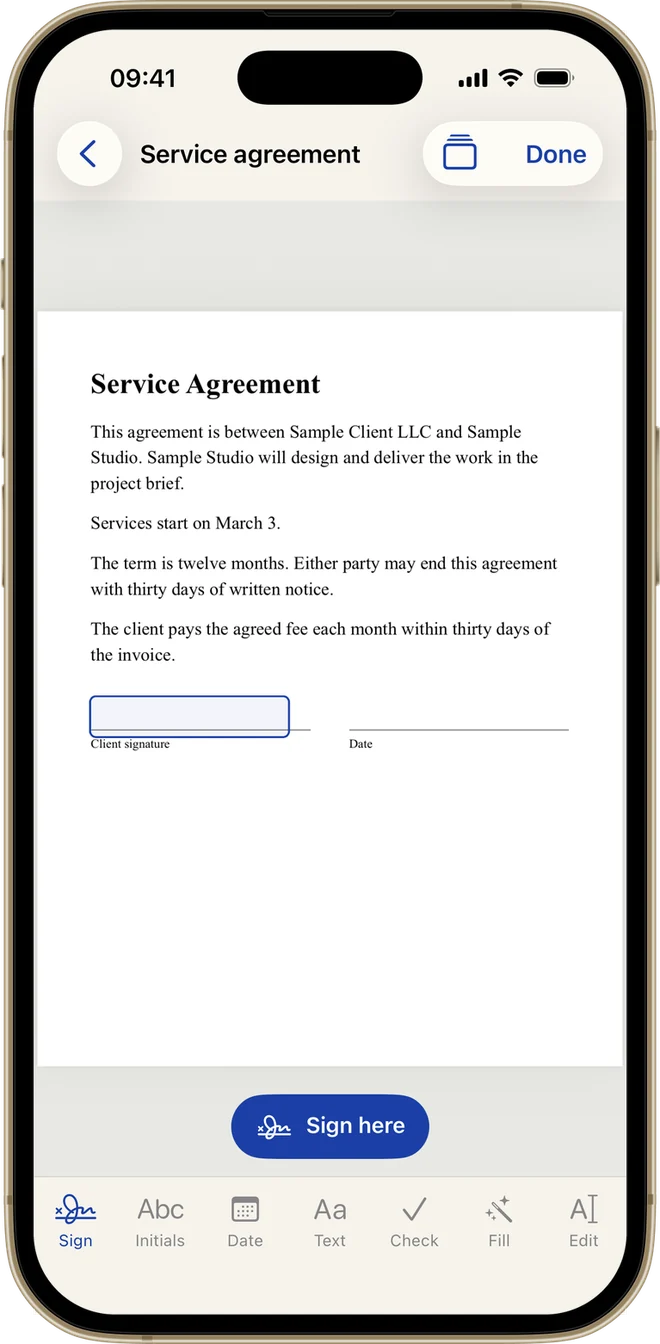
Penfast reads the page on your device, looks for labels such as Signature or Sign here, and marks the line. You do the last tap.
- Draw your signature once. Penfast saves it on your device for every document after this one.
- On the Documents screen, tap Files and pick your PDF. Tap Scan if the document is on paper.
- Wait a moment while the blue box appears on the signature line, then tap Sign here. Penfast moves to that line, even when it is on a later page.
- Tap Done at the top.
- Tap Send to pass it to Mail or Messages, or Save to Files.
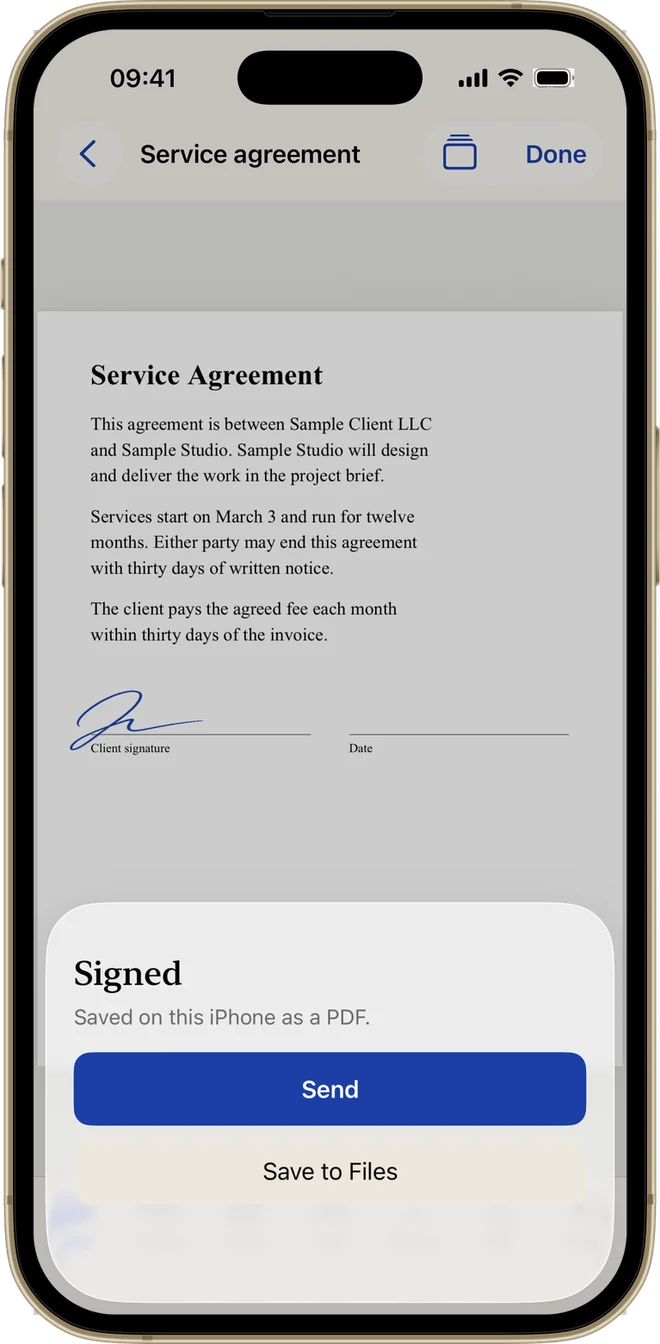
Tap Done and the signed PDF is ready to send
Sign a document from Mail or another app
You don't have to import anything first. Penfast sits in the iPhone share sheet.
- Open the PDF in Mail, Safari, Files or any app that can share it.
- Tap the Share button and choose Penfast. If it isn't in the row of apps, tap More.
- The document opens in Penfast, ready to sign.
When a document has no signature label
Some PDFs have a bare line with no word near it, and Penfast has nothing to read. Tap Sign in the bottom bar and your signature lands on the page. Drag it onto the line and use the buttons that appear to make it smaller or larger.
Penfast checks up to the first 30 pages. Sign here goes to the first line it found. If a document has a second signature line, tap Sign again and drag that one into place.
How to add initials and a date on your phone
Contracts often want more than a signature. The bottom bar in Penfast has each of these one tap away.
- Initials adds your initials, made from your details in Settings.
- Date adds today's date.
- Text adds anything you type, such as a printed name or a title.
- Check adds a check mark for a box.
Each one can be dragged and resized. For a form with many fields, the guide to filling out a PDF on iPhone is the faster route.
Which way should you use?
If you sign a PDF now and then, the built-in tools do the job and cost nothing. You find the line, then place and size the signature yourself each time.
Penfast is for the documents that keep coming. It finds the signature line for you, puts your saved signature on it, sized to fit, and you tap Done. You can also edit the text of a PDF and scan paper to PDF in the same app. It needs a subscription.